


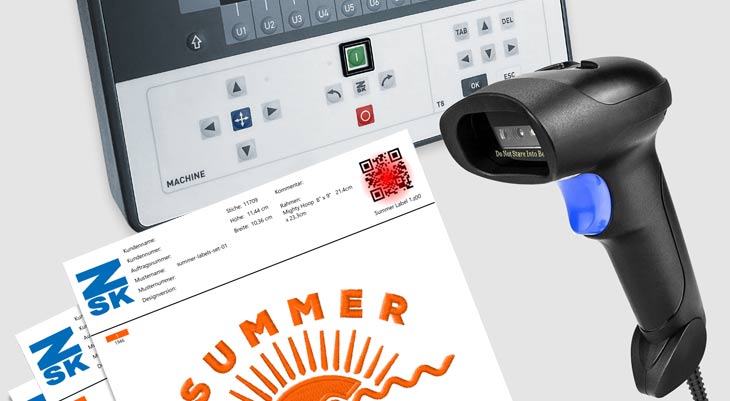
Barcode embroidery workflow: scan the job – the machine is set up
The operator scans the order sheet, and the ZSK T8 control loads the right design from the network – with start point, stops, head selection and frame. No USB stick, no typing, no wrong design on the machine.
What is a barcode workflow in embroidery?
In a barcode workflow every job carries a barcode on its order sheet. At the machine the operator scans it, and the T8 control loads the matching design from a shared network directory – optionally with start point, stops, head selection, rotation and frame settings. The scan replaces USB sticks and manual input, so set-up is faster and the wrong design cannot be loaded.
What can you load with one scan?
On servo-driven ZSK machines the barcode carries more than the design name.
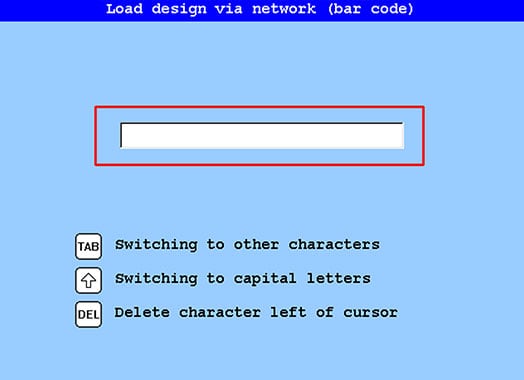
The job is ready to stitch as soon as it is scanned – optimised and assigned to the machine.
Import settings such as rotating the design for cap embroidery are loaded by barcode too.
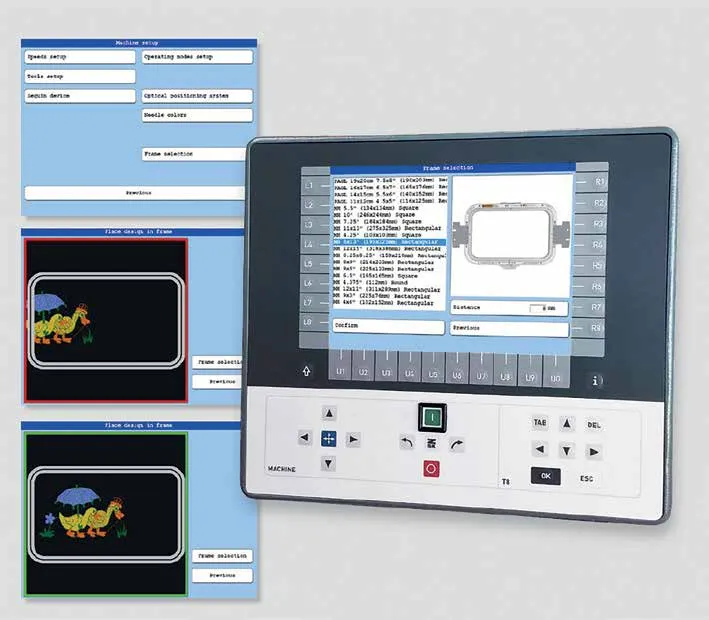
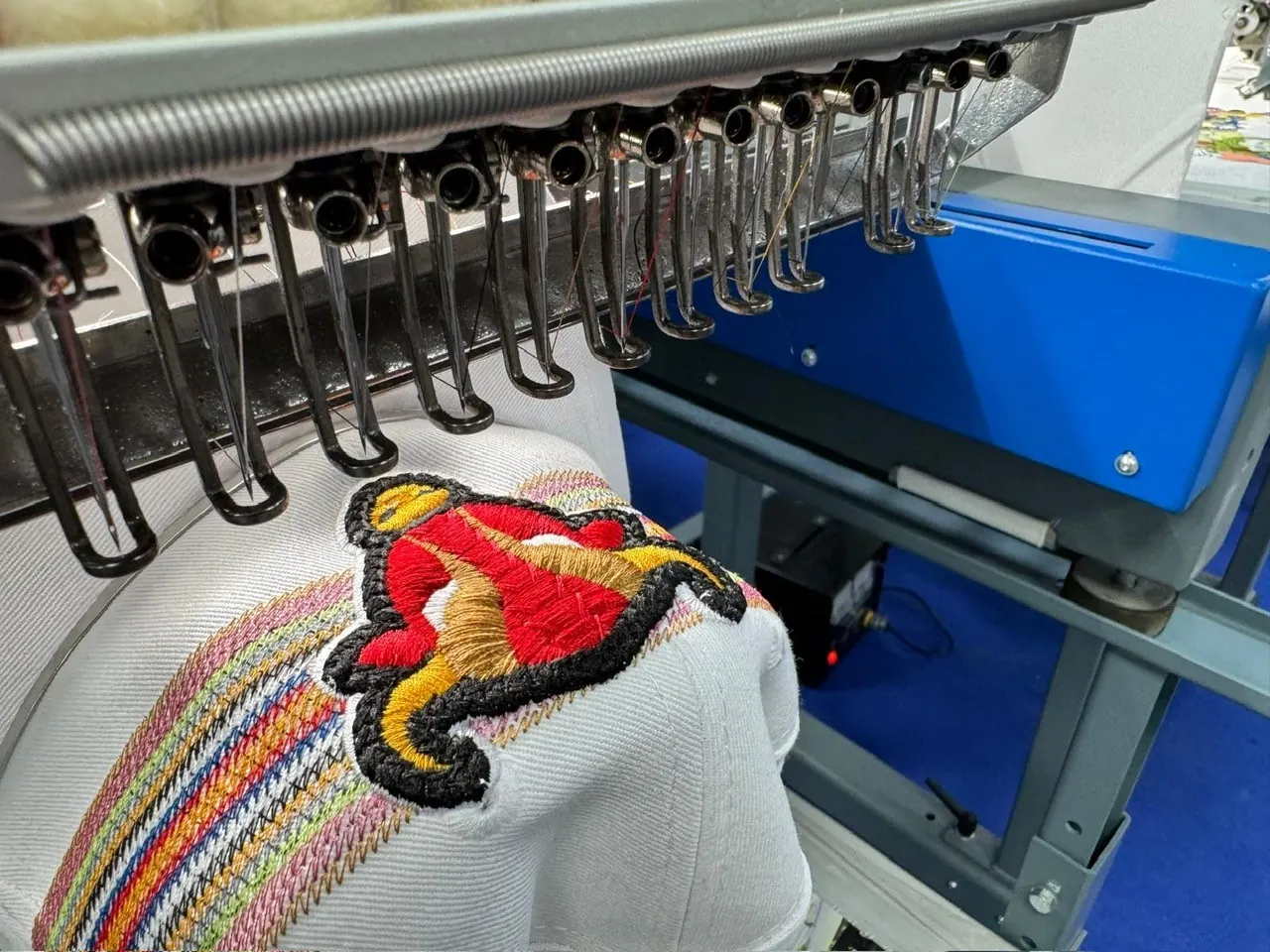
No tracing, no needle breakage from contact with the frame.
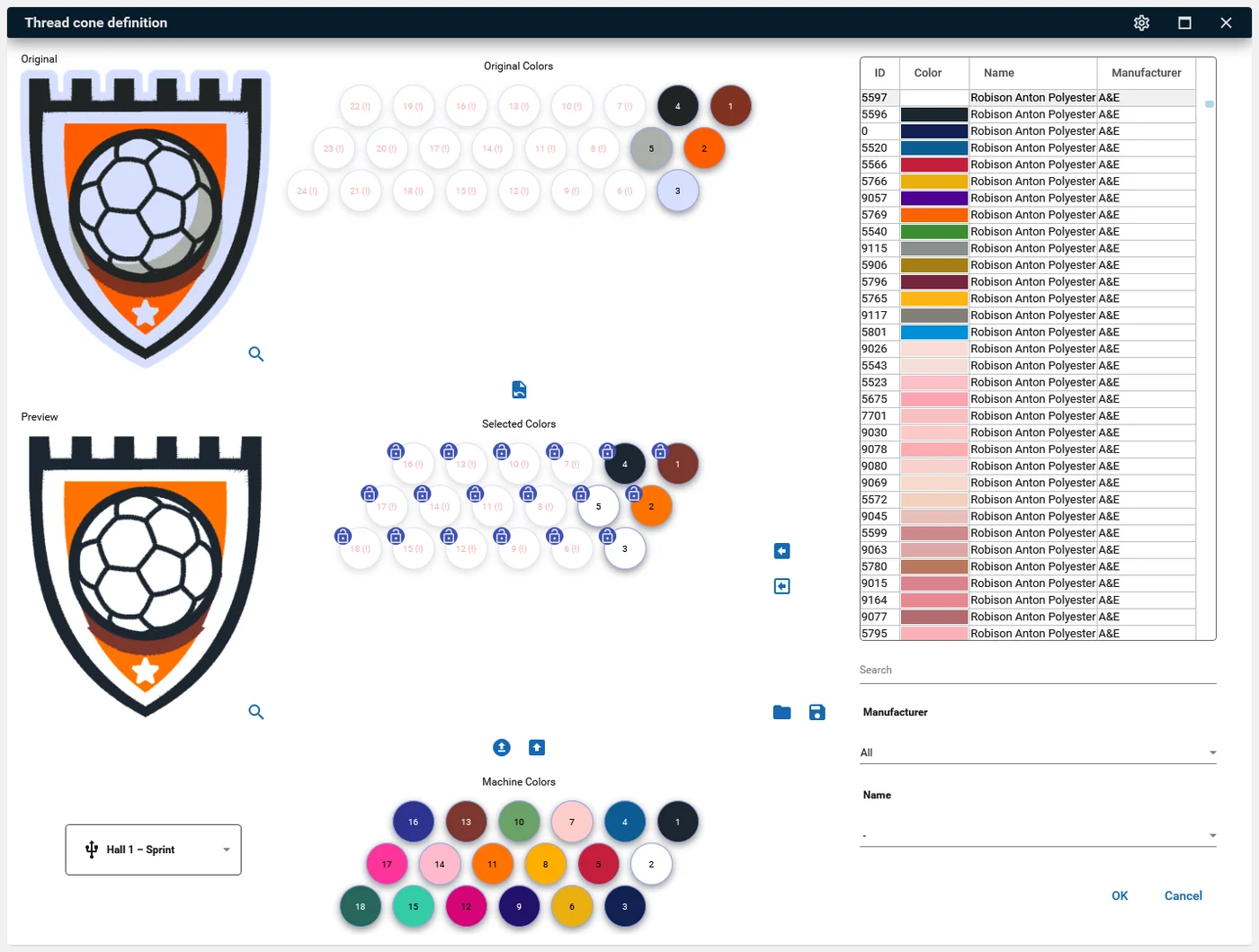
The .z00 file updates the design colours to match the set-up on the machine.
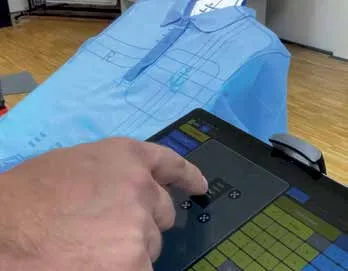
The EPS HoopStation loads designs by barcode, too – placement data travels in the .z00 file.
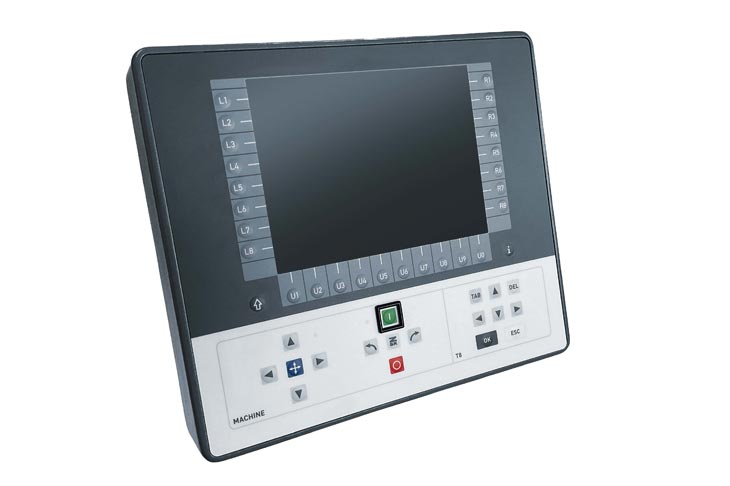
Parameters for the OPS II camera positioning system can be entered by scan as well.
How does a barcode job run through the shop floor?
From the office printer to the finished piece – without a USB stick changing hands.
- 01 ORDER SHEET
ZSK TERMINAL prints it with barcode and the design in original size
- 02 HOOP
Garment hooped – optionally positioned on the EPS HoopStation
- 03 SCAN
USB scanner on the T8 reads design number or name
- 04 LOAD
Design comes from the network share on the PoolBox
- 05 STITCH
Design optimised and assigned – the machine starts
- 06 REPORT
Completion and data flow back to planning and MY.ZSK
Push or pull – how do designs reach the machine?
ZSK machines communicate in both directions, wired or wireless. With pull, the operator triggers the load by scanning. With push, a design queue sends the next job automatically as soon as the previous one is finished – ideal for emblems and lettering. The ZSK PoolBox is the central store in between.
- PoolBox: mini server managing design folders for up to 50 ZSK machines
- Add more PoolBoxes to expand the network without limit
- The PoolBox also collects data for MY.ZSK and serves the EPS HoopStation
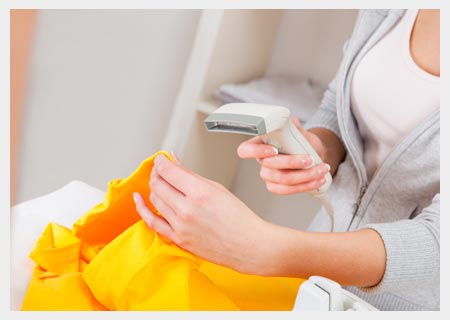
- Twin scanner mount on the RACER holds one or two barcode scanners
Why scan instead of carrying USB sticks?
The reasons from the ZSK knowledge base – each one is set-up time you get back.
Designs load in seconds, downtime between jobs shrinks.
All machines access the same central design store.
No risk of loading an outdated file from a USB stick.
Speed and colours are stored in the design and set automatically.
Central storage protects production if a system fails.
In ZSK's example a .dst file takes about 20 s longer to load than .z00.
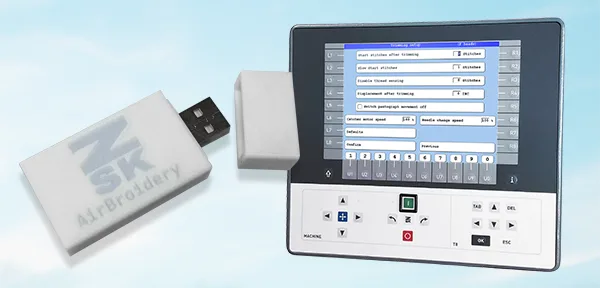
No network yet? Start with AirBroidery.
The AirBroidery Wi-Fi stick plugs into the USB port of the control. You drag the design into any browser on PC, tablet or smartphone and select it at the machine – no drivers, no software. With the ZSK USB floppy emulator it also works on older machines.
Set-up guides and related workflows
Scan. Stitch. Next job.
We look at your machines, your order sheets and your network and show you the shortest way to a barcode workflow.
Questions about barcode loading
Short answers for production managers, operators and IT.
How does loading embroidery designs by barcode work?
The operator scans the barcode on the order sheet with a USB scanner connected to the T8 control. The barcode contains the design number or name; the control loads the design from a shared network directory, optimises it and assigns it to the machine. Depending on the setting, it can be embroidered immediately or modified first, for example rotated by barcode.
What do I need for a barcode workflow?
A USB barcode scanner on the T8 control unit, a network connection and a shared design directory – typically on the ZSK PoolBox, which manages design folders for up to 50 machines. The T8-3 supports barcodes and QR codes; on the T8-2 the function is available from the release of 16 April 2018 on machines with MCP35 or MCP31. ZSK TERMINAL prints the matching order sheets with barcode.
What is the difference between push and pull?
With push, the system sends the next design to the machine automatically, for example as soon as the previous one is finished; a design queue controls the order. That suits emblem and lettering production. With pull, the operator triggers the load, typically by scanning a barcode. ZSK machines support both directions over the network.
What else can be controlled by barcode?
On servo-driven ZSK machines a barcode can load the design with its start point, stops and head selection, the import settings (for example rotating the design for cap embroidery) and the frame with field limitation and centre. Thread cones can be scanned before they go on the needle, and parameters for the OPS II camera system can be entered by scan. The EPS HoopStation also loads designs by barcode.
Why is barcode loading better than a USB stick?
Every machine can access every design, nobody walks between office and machine, and the risk of loading an old or wrong file from a stick disappears. Speed and colours can be stored in the design and set automatically, and central storage makes backups easy. In ZSK's example, a .dst file takes about 20 seconds longer to load than a .z00 file.
My machine is not networked – what can I do?
Current SPRINT and RACER machines are network-ready without additional licences, wired or wireless. For a quick start, the AirBroidery Wi-Fi stick plugs into the USB port of the control and lets you send designs from any browser – it also works on older machines via the ZSK USB floppy emulator. For barcode loading from a central store, add a PoolBox.
Technical data: barcode and network functions
| Item | Detail |
|---|---|
| Scanner | Barcode scanner with USB connection, plugged into a USB port at the back of the T8 control with the machine switched off |
| Control units | T8-3: barcode and QR code capability, 2-way networking (push and pull), 1× LAN, 1× USB-C, 3× USB 2.0. T8-2: from release 16.04.2018 on machines with MCP35/MCP31 |
| Load modes | Variant 1 "No modification options": design loads directly. Variant 2 "All modification options": load normally or rotate by barcode |
| Barcode content | Design with start point, stops, head selection; import settings; frame with field limitation and centre; thread cones; OPS II parameters |
| PoolBox | Design data management for up to 50 machines per PoolBox; data collector for MY.ZSK; server hardware for EPS |
| Networking | Wired or wireless; network-ready without additional licences on current SPRINT and RACER models |
| Scanner mounts | Single mount; twin mount for the RACER holds one or two scanners |
Availability depends on machine model and control version. Subject to change.